AI View
Inspect text served to RAG pipelines and fix formatting patterns that cause context loss during chunking.
Documentation written for human readers does not always preserve its meaning when processed by an AI pipeline. Structural elements that rely on visual context—such as descriptive subheadings, positional references (for example, "in the preceding section"), or images lacking alt text—lose meaning when an AI pipeline chunks and embeds documentation for retrieval-augmented generation (RAG).
AI View previews the AI-readable text CamelMind serves to AI tools alongside your rendered documentation and highlights formatting patterns that can reduce retrieval quality.
Enable AI View with aiView
CamelMind enables AI View by default across all documentation pages. Configure the ai.aiView block in camelmind.config.ts to disable AI View or restrict who can access it.
const config: CamelMindConfig = {
  // …
  ai: {
    aiView: {
      enabled: true,
      roles: [],
    },
  },
}
Configure the aiView settings
The aiView configuration object supports the following options:
| Field | Required | Description |
|---|---|---|
enabled | No | Set to false to disable AI View and hide it from the documentation toolbar. Defaults to true. |
roles | No | Restricts AI View access to specific user roles, such as ["admin"]. Leave empty to inherit standard documentation permissions. This setting has no effect when you disable authentication. |
AI View inherits your existing document access controls. Users cannot access AI View for a page they do not have permission to read.
Open AI View for a documentation page
Open AI View from the documentation toolbar on any page or navigate directly to the page's AI View URL.
- Documentation toolbar: Click the AI View button in the toolbar above the page content, alongside View as Markdown and Download Markdown.
- Direct URL:
/ai-view/features/llms-txt/[page-slug]
For example:
/ai-view/features/llms-txt/ai-view
Read the rendered document, AI-readable text, and issues
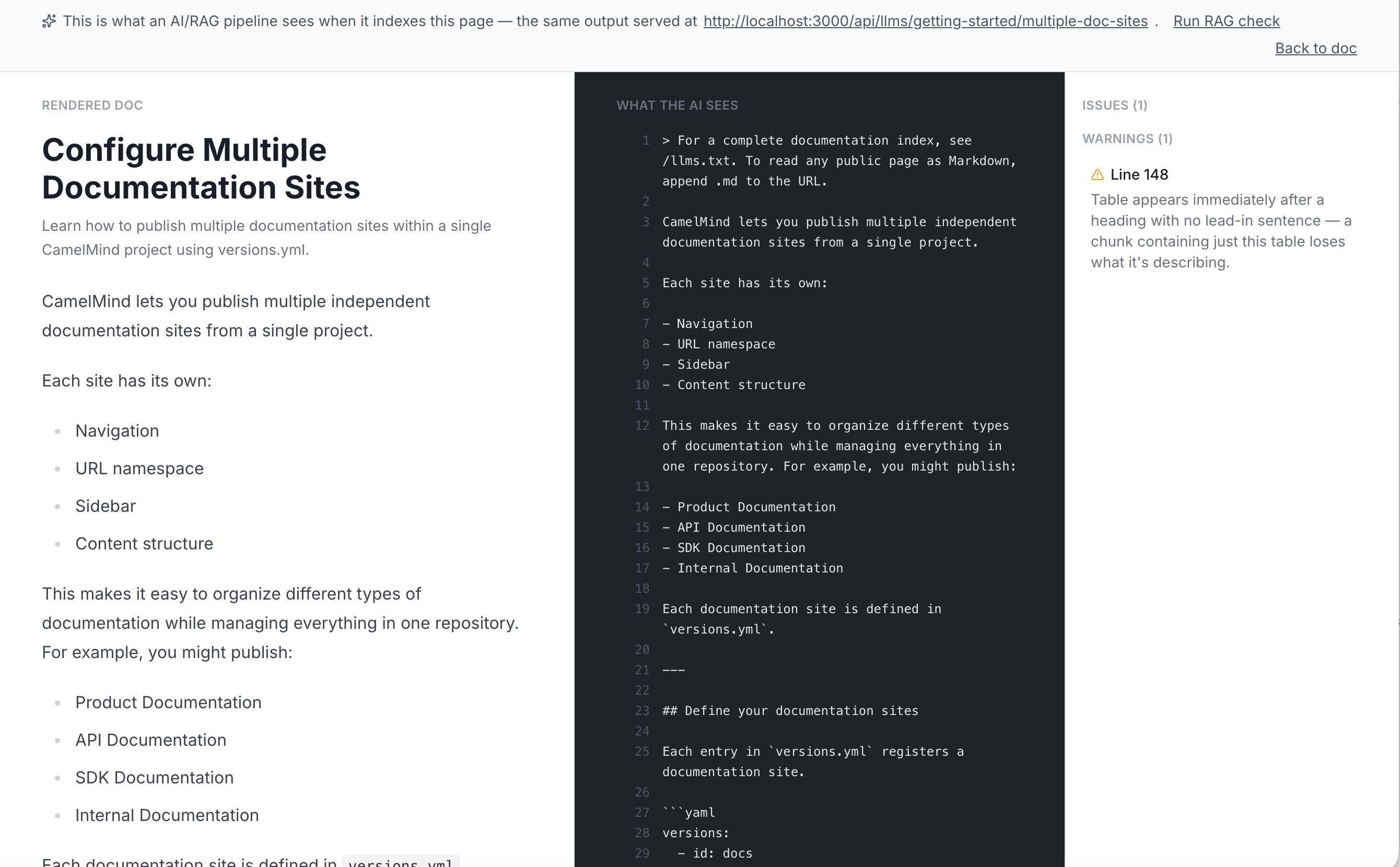
AI View displays three panes so you can compare the rendered documentation with the text available to AI and RAG pipelines.
Displays the documentation as human readers see it, including formatting and interactive elements.
Displays the raw Markdown output served at /api/llms/[page-slug] for AI assistants and RAG pipelines.
CamelMind flattens interactive MDX components into plain text. Interactive components like <Tabs> lose their visual boundaries when text converters flatten them into sequential text.
The pane highlights lines that AI View identifies as potential formatting issues.
Lists detected formatting issues by severity:
- Warnings: High-priority formatting issues that can cause content to lose context when split into retrieval chunks.
- Notes: Lower-confidence observations or structural patterns worth inspecting.
Selecting an issue scrolls the middle pane to the flagged line.
What formatting issues does AI View flag
AI View scans AI-readable text for formatting patterns that degrade retrieval quality when chunking splits
The following rule categories can trigger warnings or notes:
| Category | Severity | Description |
|---|---|---|
long-paragraph | Warning | Flags paragraphs exceeding 120 words without subheadings… |
context-less-code | Warning | Flags code blocks placed directly under a heading… |
context-less-table | Warning | Flags tables placed directly under a heading… |
weak-alt-text | Warning | Flags images missing alt text… |
positional-reference | Warning | Flags spatial references such as "as shown above"… |
| Category | Severity | Description |
|---|---|---|
opaque-jsx | Note | Flags raw component structures… |
weak-heading-context | Note | Flags sections that begin with pronouns… |
=== |
How to fix AI View formatting issues
Use the following fixes to address the formatting issues identified by AI View:
- Long paragraphs: Divide extensive text into smaller paragraphs, subheadings, or lists so each retrieved chunk covers a focused topic.
- Context-less code: Add an explanatory sentence directly beneath the section heading that describes what the code does or configures.
- Context-less tables: Add an introductory sentence directly beneath the section heading that explains what the table describes.
- Weak alt text: Add descriptive alt text that explains the information conveyed by the image.
- Positional references: Replace directional phrases with explicit references to the subject or section. For example, use "See the Configuration section" instead of "as shown above."
- Opaque JSX: Ensure each tab or step includes enough context to remain understandable when rendered sequentially.
- Weak heading context: Start the section with an explicit subject instead of relying on introductory pronouns such as "It," "This," or "These."
Related AI documentation tools
Explore additional CamelMind AI features and tools designed to optimize documentation for LLMs and RAG pipelines: