This is what an AI/RAG pipeline sees when it indexes this page — the same output served at https://camelmind-docs.vercel.app/api/llms/features/use-doc-offline.Back to doc

Rendered doc

Download Documentation for Offline Use

Download your documentation as either a self-contained offline website or a single PDF for offline access.

CamelMind lets you download a self-contained offline copy of your documentation to access it anytime, even without an internet connection.


Before you begin

If your documentation site requires authentication, sign in first. The download buttons are only visible to authenticated users.

Download an offline package

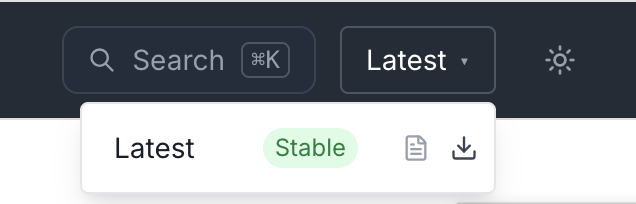
  1. Open the version selector in the navigation bar.
  2. Select the documentation version.
  3. Click the download icon. Download Icon

CamelMind downloads a ZIP file containing a complete offline copy of that documentation version.


Run the offline documentation

Extract the downloaded ZIP file.

Launch the local server included in the package.

PlatformCommand
macOS / Linux./launch.sh
Windowslaunch.bat

The launcher automatically opens:

http://localhost:8765/home/

The documentation behaves like the online site, including:

  • Full-text search
  • Navigation
  • Images
  • Internal links

You do not need internet connection to launch and view the site after downloading the package.

To stop the local server, press Ctrl+C in the terminal window.


Download documentation as an offline PDF

To download an offline PDF copy of the documentation:

  1. Open the version selector.
  2. Click the PDF icon beside the version. Download Icon

CamelMind downloads a single PDF containing:

  • Cover page
  • Table of contents
  • Every documentation page

Access to restricted content

If you download the ZIP or PDF from a protected documentation site, your downloaded files already contain the content the site authorized you to access. You do not need to sign in again to view the offline package or PDF.

What the AI sees

1> For a complete documentation index, see /llms.txt. To read any public page as Markdown, append .md to the URL.
2 
3CamelMind lets you download a self-contained offline copy of your documentation to access it anytime, even without an internet connection.
4 
5---
6 
7<Callout type="important" title="Before you begin">
8 
9If your documentation site requires authentication, sign in first. The download buttons are only visible to authenticated users.
10 
11</Callout>
12 
13## Download an offline package
14 
151. Open the version selector in the navigation bar.
162. Select the documentation version.
173. Click the download icon.
18 ![Download Icon](/images/download-offline-pdf.png)
19 
20CamelMind downloads a ZIP file containing a complete offline copy of that documentation version.
21 
22---
23 
24## Run the offline documentation
25 
26Extract the downloaded ZIP file.
27 
28Launch the local server included in the package.
29 
30| Platform | Command |
31|----------|---------|
32| macOS / Linux | `./launch.sh` |
33| Windows | `launch.bat` |
34 
35The launcher automatically opens:
36 
37```
38http://localhost:8765/home/
39```
40 
41The documentation behaves like the online site, including:
42 
43- Full-text search
44- Navigation
45- Images
46- Internal links
47 
48You do not need internet connection to launch and view the site after downloading the package.
49 
50To stop the local server, press **Ctrl+C** in the terminal window.
51 
52---
53 
54## Download documentation as an offline PDF
55 
56To download an offline PDF copy of the documentation:
57 
581. Open the version selector.
592. Click the **PDF** icon beside the version.
60![Download Icon](/images/download-offline-pdf.png)
61 
62CamelMind downloads a single PDF containing:
63 
64- Cover page
65- Table of contents
66- Every documentation page
67 
68---
69 
70## Access to restricted content
71 
72If you download the ZIP or PDF from a protected documentation site, your downloaded files already contain the content the site authorized you to access. You do not need to sign in again to view the offline package or PDF.

Issues (0)

No AI-friendliness issues found.