> For a complete documentation index, see /llms.txt. To read any public page as Markdown, append .md to the URL.
Run RAG Check helps you find retrieval problems in a documentation page before those problems reach an AI or RAG pipeline.
It takes the same AI-readable text shown in [AI View](/features/ai-view), splits it into retrieval-sized chunks, generates test questions, and uses a built-in keyword retriever to see whether those questions can find the right content.
You get chunk-level findings and retrieval scores that help you identify problems such as:
- Content that is difficult to retrieve with likely user questions
- Chunks that don't make sense when retrieved on their own
- Headings that don't provide enough context
- Tables or code blocks that lose meaning when extracted
- Broken links that can stop an AI agent from following a documentation path
- Sections that are too long or too fragmented for effective retrieval
Run RAG Check is a **local heuristic**, not a replacement for testing your production RAG pipeline. It uses a built-in keyword retriever and does not call an LLM or require an API key.
---
## When to use Run RAG Check
Use **AI View** and **Run RAG Check** together:
1. Open **AI View** to see the exact text an AI pipeline receives.
2. Fix formatting or content problems you find there.
3. Run **Run RAG Check** to see how that content behaves when split into chunks and retrieved.
4. Use the findings to improve the page.
5. Run the check again to verify the changes.
---
## Enable Run RAG Check
Run RAG Check is enabled by default during local development.
To configure it explicitly, add a ragCheck block under `ai` in `camelmind.config.ts`:
```typescript
const config: CamelMindConfig = {
// ...
ai: {
ragCheck: {
enabled: true,
localOnly: true,
roles: [],
defaultChunkSize: 500,
defaultChunkOverlap: 80,
maxGeneratedQuestions: 12,
},
},
}
```
### Configuration fields
| Field | Required | Description |
|---|---|---|
| `enabled` | No | Enables or disables the feature. Defaults to `true`. Set to `false` to hide the tool from the toolbar and disable its route. |
| `localOnly` | No | Keeps the author tool restricted to localhost. Defaults to true. Setting this to `false` disables the tool rather than making it remotely accessible. |
| `roles` | No | Restricts access to specific roles, such as ["editor", "admin"]. Uses the same role-based access pattern as AI View. An empty array allows any authenticated local user. This has no effect when authentication is disabled. |
| `defaultChunkSize` | No | Default value for Chunk size, in characters. Defaults to `500`. Valid range: 100–4000. |
| `defaultChunkOverlap` | No | Default value for Chunk overlap, in characters. Defaults to `80`. Must be smaller than the chunk size.|
| `maxGeneratedQuestions` | No | Maximum number of test questions generated for each run. Defaults to `12`. |
Run RAG Check inherits your existing document access controls, just like AI View. A user who cannot open a page cannot open its RAG Check either.
---
### Requirements
Run RAG Check is available only when all of the following conditions are met:
- The dev server is running with `NODE_ENV=development`, or `CAMELMIND_AUTHOR_TOOLS=true` is set.
- The request's Host header is `localhost`, `127.0.0.1`, or `[::1]`, on any port.
- `OFFLINE_MODE` is set to `false`.
- `ai.ragCheck.enabled` is set to `true`.
- If `roles` contains values, the current session has at least one of those roles.
When these requirements aren't met, Run RAG Check is hidden from the toolbar and its route returns `404`. This means a production reader does not receive a permission error or other indication that the author tool exists.
`CAMELMIND_AUTHOR_TOOLS=true` is a development-only escape hatch for testing author tools outside `NODE_ENV=development`. Do not set it in a production Docker image or shared staging environment. It removes the environment check but does not remove the localhost host check.
---
## Run a check
The **Run RAG Check** screen has three panes:
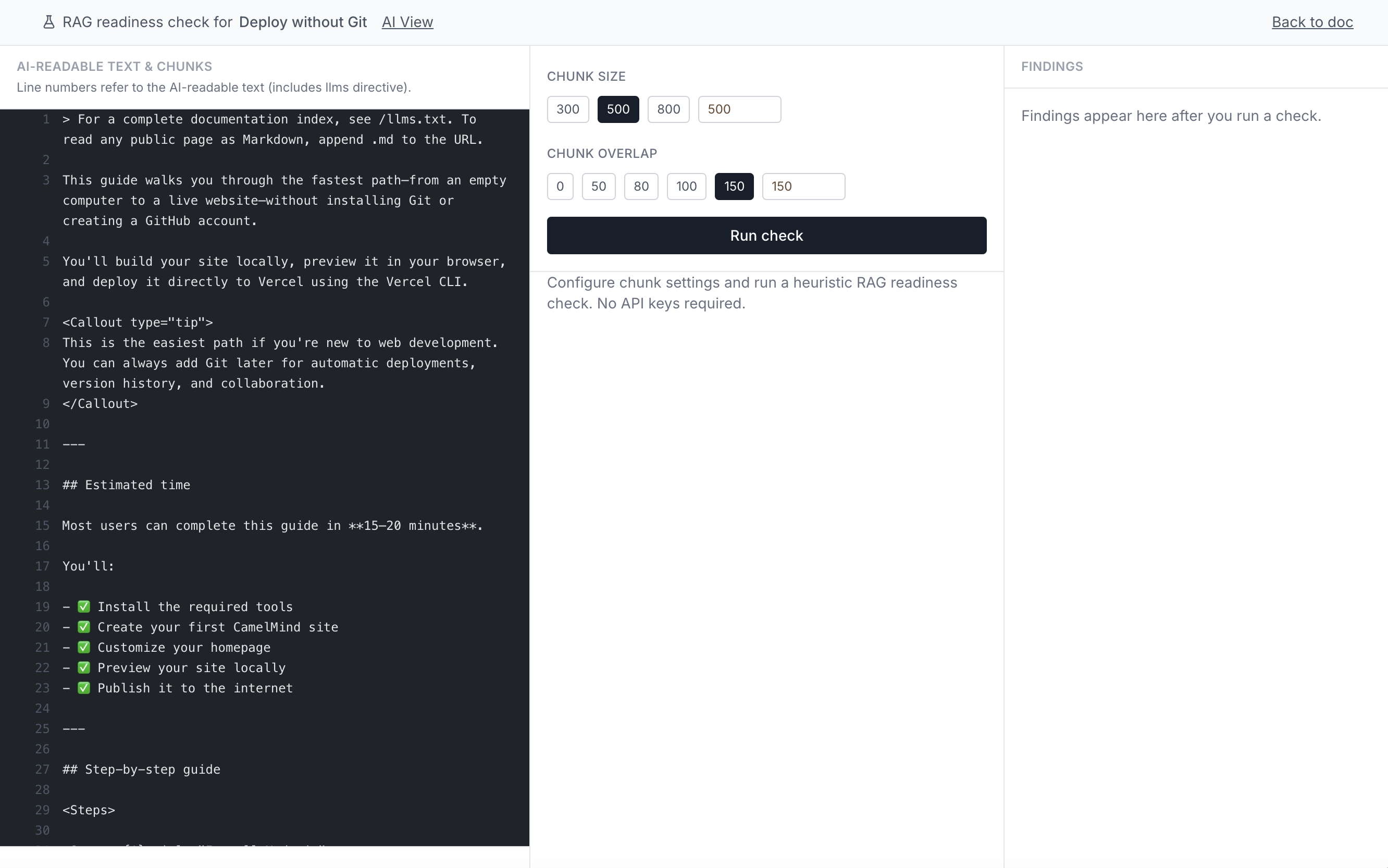
- **AI-readable text and chunks** — See how your page is divided into retrieval chunks.
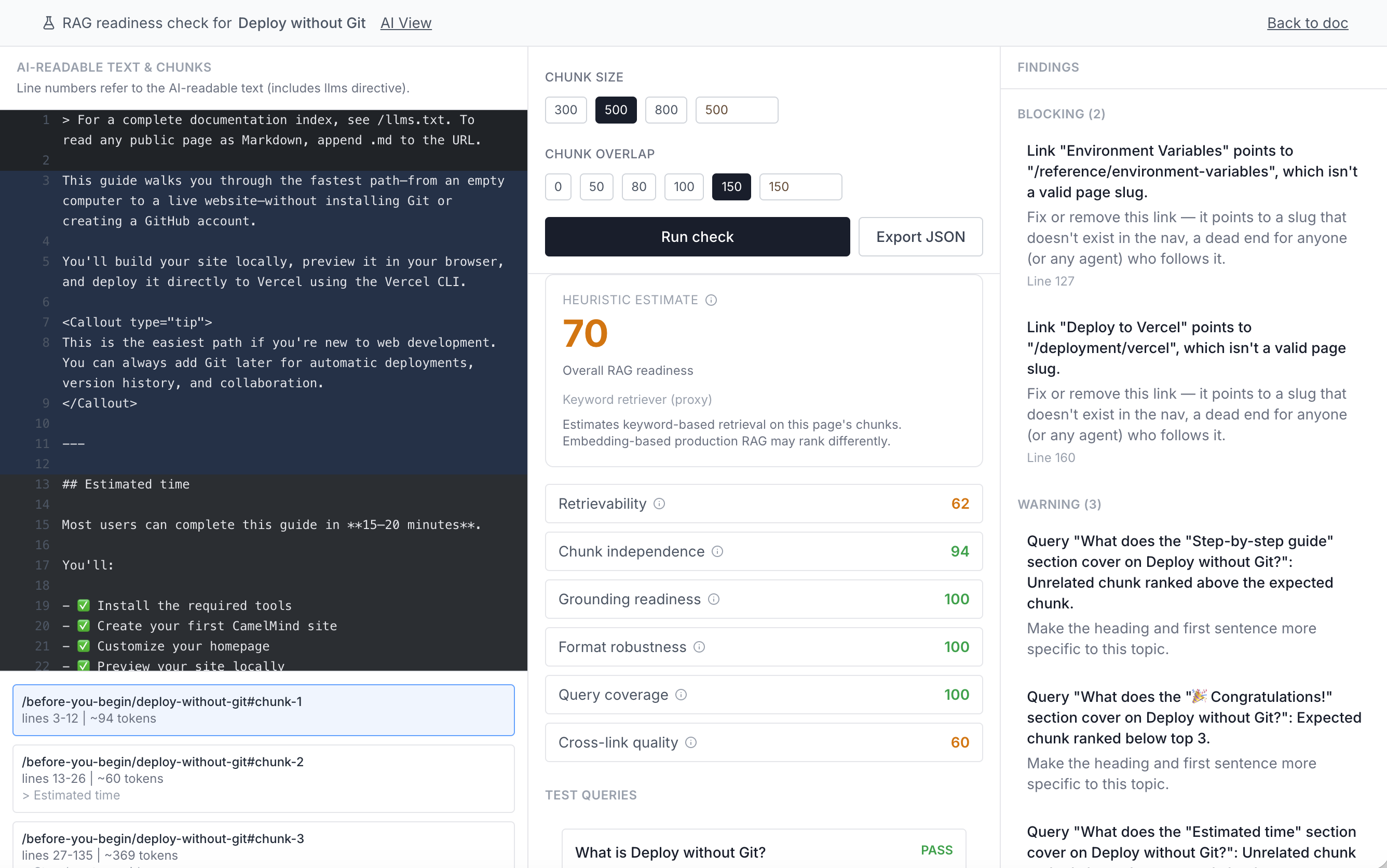
- **Controls and summary** — Configure chunking, run the check, and review RAG readiness scores and test queries.
- **Findings** — Review issues and recommended fixes.
=== "AI-readable text and chunks"
The left pane displays the AI-readable version of your page—the same content shown in [AI View](/features/ai-view)—divided into the retrieval chunks used by the check.
### Navigate between results {/* toc:exclude */}
Selections are synchronized across the screen:
- Click a **line** or **chunk** to select it.
- Click a **finding** to jump to the affected chunk.
- Click a **test query** to see which chunks were retrieved and jump to the relevant content.
### Preview different chunking strategies {/* toc:exclude */}
Change **Chunk size** or **Chunk overlap** in the middle pane to see how different settings affect your chunk boundaries.
Line numbers refer to the generated AI-readable text, including the `llms.txt` directive prefix. They will not match the line numbers in your original MDX source.
=== "Controls and summary"
Use the middle pane to configure chunking, run the check, and review the results.
### Configure chunking {/* toc:exclude */}
| Control | Description |
| :--- | :--- |
| **Chunk size** | The maximum amount of text, measured in characters, included in each retrieval chunk. Select **300**, **500**, or **800**, or enter a custom value from **100–4000**. |
| **Chunk overlap** | The amount of text, measured in characters, repeated between adjacent chunks. Overlap helps preserve context when important information falls near a chunk boundary. Select **0**, **50**, **80**, **100**, or **150**, or enter a custom value smaller than the chunk size. |
Start with the default **500-character chunk size** and **80-character overlap**, then experiment with different values if your content produces retrieval or chunk-independence findings.
### Run the check {/* toc:exclude */}
Click **Run check**. CamelMind performs the following steps locally:
1. Converts the page into AI-readable text.
2. Splits the text into retrieval chunks using your selected settings.
3. Generates representative test questions from the page.
4. Runs the built-in keyword retriever against those questions.
5. Evaluates the results and displays RAG readiness scores and findings.
No API key or external AI service is required.
### Review the summary {/* toc:exclude */}
After the check completes, the summary displays a **RAG readiness score from 0–100**, calculated from six dimensions:
| Score | Weight | What it measures |
| :--- | :---: | :--- |
| **Retrievability** | 35% | How often the expected chunk appears in the top three results for generated test questions, including penalties for retrieval noise. |
| **Chunk independence** | 20% | Whether chunks remain understandable when retrieved without their surrounding content. |
| **Grounding readiness** | 15% | Whether the page provides enough explicit context for an AI system to answer confidently. This is a heuristic; no answer is actually generated or evaluated. |
| **Format robustness** | 15% | How well the page preserves meaning when converted into the plain text an AI system receives. |
| **Query coverage** | 5% | How often the expected chunk appears anywhere in the top five retrieval results. |
| **Cross-link quality** | 10% | Whether the page connects effectively to other documentation through valid outbound links. |
If a run contains a **blocking** finding, the overall score is capped at **70**, regardless of the weighted score. This prevents a serious failure—such as a dead link or failed retrieval—from being hidden by strong scores in other areas.
Hover over the information icon next to a score to see its full description.
### Review test queries {/* toc:exclude */}
Below the summary, **Test queries** shows the questions generated from your page.
Each query is marked:
- **Pass** — The expected content was retrieved successfully.
- **Warning** — The expected content was retrieved, but other chunks created retrieval noise.
- **Fail** — The expected content was not retrieved successfully.
Click a test query to see which chunks were retrieved and jump to the relevant content in the left pane.
Every score is labeled **Heuristic estimate**. Run RAG Check uses a keyword-based retriever as a local proxy for real retrieval. The results can help you identify potential problems, but they are not a substitute for testing your documentation against your production RAG stack.
=== "Findings"
The right pane lists issues detected during the check and groups them by severity.
- **Blocking** — An outright failure that can prevent successful retrieval or navigation, such as a dead link or a test question that fails to retrieve its expected chunk.
- **Warning** — A likely retrieval, context, or grounding problem that should be reviewed.
- **Note** — A lower-confidence observation that may still be worth addressing.
Each finding includes:
- **What went wrong**
- **A recommended fix**
- **The affected line or chunk**, when applicable
Click a finding to jump directly to the relevant chunk in the left pane.
===
---
## Fixing common findings
| Finding category | Fix |
|---|---|
| `retrieval-miss` / `retrieval-noise` | Add the exact terms users are likely to search for; make the heading and opening sentence more specific. |
| `weak-heading` / `weak-heading-context` | Restate the section's subject in the heading and opening line instead of a generic label or pronoun. |
| `over-split-section` / `long-chunk` | Rebalance chunk size, or restructure the section so a natural break falls at a heading. |
| `context-less-table` / `context-less-code` | Add a lead-in sentence before the table or code block explaining what it shows. |
| `dead-link` | Fix or remove the link — an agent following it hits a dead end. |
| `no-outbound-links` | Add at least one link to related docs so a multi-step task doesn't stall on this page. |
Categories shared with AI View (`long-paragraph`, `context-less-code`, `context-less-table`, `weak-alt-text`, `positional-reference`, `opaque-jsx`, `weak-heading-context`) use the same fixes described on the [AI View](/features/ai-view#fixing-common-issues) page.
---
## Run RAG Check across every doc
You can run a site-wide diagnostic scan across every page in your navigation tree to find low-scoring docs in a single pass:
```bash
npx tsx scripts/rag-check-report.ts [threshold]
```
The `rag-check-report.ts` script runs the same chunking, question generation, retrieval, and scoring pipeline as the interactive tool against every document in nav.yml. It sorts the results by overall score and outputs pages scoring at or below the specified threshold (default 89).
For each flagged document, the report displays the overall score, the two lowest-scoring dimensions, and up to five findings:
```text
--- /features/example-doc (Example Doc) — overall 72 — weakest: crossLinkQuality=40, retrievability=58
[blocking] dead-link: ...
[warning] weak-heading-context: ...
...and 3 more findings
```
- Run rag-check-report.ts locally as a diagnostic tool. CamelMind does not wire this script into package.json or CI build workflows.
- The script skips entries without a source file (such as `noDropdown` group placeholders) or pages that fail to load, counting them separately in the final summary line.
---
## Related tools
- [AI View](/features/ai-view) — preview the raw text a RAG pipeline ingests, without running chunking or retrieval.
- [LLMs.txt](/features/llms-txt) — the underlying AI-readable output both tools are built on.